Documentation
Most AI tools answer based on their training data; other tools require you to manually pull in the data yourself. FN2 does neither: ask a question in plain words and it reads the actual prices, earnings calls, and economic data, then attaches a link to every number and quote so you can verify the answer instead of trusting it.
What FN2 is
FN2 is a custom agentic harness built around a simple contract: the model answers from data it just read, not from what it remembers. Every question starts a research loop. The model picks from a desk of tools covering live market data, a semantically indexed archive of thousands of earnings-call transcripts, the full FRED macro catalog, Polymarket prediction markets, the open web, and a backtesting engine. It reads what comes back and iterates until every number and quote carries a link to its source.
For more advanced questions, FN2 can fan out to parallel subagents (a bull case, a bear case, a macro pass) that research concurrently and merge into one ranked synthesis. And because it is a harness rather than a thin wrapper, the same loop runs headless: hand a question to a scheduled agent and it repeats the identical research unattended, then delivers the result to your inbox, Discord, or SMS.
See it in action
Here are real questions and the answers FN2 gave. Click any one to open the live chat. No signup needed.
You do not need special syntax. Plain questions work. But a little specificity pays off, because it tells the model which tools to reach for. Name the ticker, the timeframe, and what you actually want to know.
After each answer, FN2 suggests follow-up questions. They are a fast way to go deeper without typing, and a good hint at what the model can do next.
Two ways to use it
You can work with FN2 two ways. In chat, you drive: ask a question, follow up, and get answers in real time. As an agent, you hand the same work to a schedule, and FN2 does the research on its own, then emails, messages, or texts you the result. Anything you can ask in chat, you can hand to an agent.
Ask in your own words
"What did Microsoft say about AI spending last quarter?" The AI does the reading and answers with quotes and a source list.
Real data, not guesses
Prices, earnings transcripts, FRED macro data, prediction markets, and the open web. Every number traces back to the tool that fetched it.
Put it on a schedule
Turn any research task into an agent. It runs every morning, after the close, or on a custom cron, and reports back.
Get it where you work
Agent results arrive by email, Discord, or text. Wire up a channel once and point any agent at it.
FN2 is a research tool, not a broker. It reads, analyzes, and reports. It does not connect to your brokerage or place trades, and nothing it says is financial advice.
Quickstart
The fastest way to understand FN2 is to ask it something. Here is the path from sign-up to a scheduled agent in about five minutes.
Create an account
Sign up with email or Google. New accounts start a free trial with access to every tool, so you can test the real thing before picking a plan.
Ask your first question
You land on the chat screen with live index charts. Type a question and send it. The answer streams in, often with a chart or a source card.
Show me NVIDIA over the last six months and what's driving itFollow up
FN2 keeps the thread of the conversation, so you can build on the last answer without repeating yourself.
Now compare it to AMD, and pull the latest from both earnings callsCheck the sources
Numbered markers like [1] appear inline in the answer. Click one to see exactly which transcript, filing, or page it came from.
Hand it to an agent
When a question is worth asking every day, make it an agent. You can even set one up from chat.
Create an agent that emails me a market briefing every weekday at 8amHow FN2 works
Here is what happens after you hit send. FN2 is a language model with a research desk attached. When your question arrives, the model decides which tools it needs, runs them, reads what comes back, and writes an answer grounded in the results. You never call a tool by name. You describe what you want, and the model wires up the steps.
The tools are grouped into skills. A skill is a bundle of related tools the model loads when your question calls for it. Asking about an earnings call loads the transcript-search skill; asking for the macro backdrop loads the FRED skill. This keeps the model focused on the right tools for the job instead of juggling all of them at once.
Two things make the output trustworthy:
- Grounding. Figures come from a tool that fetched them, not from the model's memory. If the data is not available, FN2 says so rather than inventing it.
- Citations. The model marks claims with inline
[N]references that link to the underlying source. Citations that do not resolve to a real source are dropped before you ever see them.
If you ever want to know how FN2 reached an answer, just ask: "What did you check for that?" It will tell you which tools and data it used.
Talking to FN2
You ask, FN2 answers, and an answer can carry more than just text: interactive price charts, company cards, earnings transcripts, news, macro tables, and prediction-market odds, depending on what you asked.
The welcome screen
Open the chat and you see live charts for the S&P 500, NASDAQ, and Dow, plus a search bar for jumping straight to any ticker. Click an index to open its panel, with the chart, a read on why it moved, and the key numbers for the day. Your recent agent runs sit just below, one click away.
What an answer can contain
- Text formatted with headers, lists, and emphasis.
- Charts you can zoom and re-range (1D through 5Y).
- Company cards with logo, price, and key metrics.
- Earnings transcripts with the relevant passage highlighted.
- News with source, date, and a one-click "Ask AI".
- Macro tables from FRED with year- and month-over-year changes.
- Citations linking each claim to its source.
History and shortcuts
Every conversation is saved. Search past chats by keyword or browse by date, and pick up any one where you left off. A few keys speed things up:
| Shortcut | Action |
|---|---|
| Enter | Send message |
| Shift + Enter | New line |
| Esc | Close panels and search |
Citations & sources
When an answer leans on data, FN2 marks the claim with a numbered reference like [1]. Click it to open the source: the exact earnings passage, the filing, the news article, or the web page the model read. This is on by default; there is nothing to turn on.
Citations are a grounding safeguard, not decoration. The model proposes them as it writes, and the server checks each one against a real, stored source before saving. Any citation that does not resolve gets dropped, so a number in your answer always points to something you can open and verify.
Models & file uploads
Choosing a model
Chat and new agents share three choices: Fast for most use cases, Balanced for basic reasoning, and Advanced for our most powerful model.
Tiers and models
Available models depend on your plan. Choose your Advanced model in Preferences → Agents → Models, where individual model names and rate limits are shown.
- GLM-5.3 Flash from Z.ai powers Fast for everyday questions, lookups, and quick research.
- GLM-5.3 from Z.ai is the default Advanced model: a large-context frontier model for multi-step analysis, longer reasoning, and the kind of comparison a Fast model would rush. Most paid research runs on this tier.
- Claude Sonnet from Anthropic is part of Advanced (Flagship) on the Max plan. It is strong at careful, structured reasoning over long documents — earnings calls, filings, dense macro — where staying precise across many pages matters.
- GPT-5 from OpenAI also sits in Advanced (Flagship) on Max: a broad, capable generalist for the hardest questions, and a useful second flagship perspective alongside Claude.
Each plan has a default model, and an agent carries its own model setting independent of your chat: run a frequent monitor on Fast and a weekly deep-dive on Advanced.
Advanced-tier usage and allowances
Advanced-tier usage is metered against your plan’s monthly allowance and a daily cap. Metering is cost-weighted, so a pricier model draws down the allowance faster than a cheaper one. If you get close to the limit, FN2 can fall back to a lower tier, and tells you when it does, so an answer always comes back. Manage Plan and the agent dashboard show how much of your monthly allowance you have used.
For everyday quotes and quick lookups, a Fast model is quicker and stretches your allowance further. Save Advanced and Flagship models for multi-step reasoning, comparisons, and long analysis, where the extra depth earns its cost.
Uploading a document
Attach a PDF, a text or spreadsheet export, or an image and ask about it. Tap the attachment button (the paperclip) next to the message box on any device, including phones, or on a computer drag the file straight into the input. FN2 extracts the full text and reasons over it, which is handy for a 10-K, a research note, a brokerage CSV, or a screenshot of your holdings.
- Supported: PDF, text and spreadsheet exports (
.txt,.csv,.tsv,.md,.json), and images (.png,.jpg,.webp,.gif,.heic). - Up to 20 MB, one file per message.
Multi-Agent Mode MAX plan
Multi-Agent Mode runs one query as several subagents in parallel instead of a single pass. Each takes a different stance; the lead agent reads their outputs and returns one ranked synthesis. You trade latency and tokens for breadth and a cross-checked answer.
The subagents are prompted adversarially: one builds the thesis, one attacks it with the bear case, one steel-mans the opposing view, and the lead synthesizes toward what the data supports.
Turning it on
There are two controls, a per-chat slider and a per-user default:
- The slider — a toggle inside the model dropdown in the chat composer, alongside the Fast / Balanced / Advanced model picker. Flip it on and your next answer uses Multi-Agent Mode.
- The default — a setting at Preferences → Agents → Settings with three choices: Adaptive, Always, or Off.
- Adaptive (the default) — turns on automatically when you have the Advanced model selected, and stays off for Fast and Balanced. The heavier process is worth it on the frontier model, not on quick lookups.
- Always — on for every model.
- Off — never on by default.
The slider re-derives its default every time you change the model: picking a lower tier turns it off. You can still flip the slider by hand for a per-chat override, which lasts until your next model change.
What you see
When the mode is on and the query warrants it, the lead agent fans out into subagents, for example a bull and bear case per ticker plus a macro pass. Each runs the same toolset as your chat; the lead then writes a ranked synthesis. The run streams live:
- A live fan-out card shows how many subagents are running and complete (X of N), with status rows, elapsed time, and tokens.
- An "A" badge with a dropdown lets you open each subagent’s own transcript, parent first and children indented, so you can read exactly how each one reasoned.
Whether subagents spawn depends on the query and the model. A single-subject lookup ("NVDA price?") is answered directly, since subagents would only add latency, while a multi-entity comparison triggers a real fan-out. Propensity varies by model. Subagents do not nest, and the mode applies to interactive chat; scheduled agents do not fan out by default. Running several models in parallel also costs many more tokens than a single answer, so it draws down your allowance faster; reserve it for questions where the extra rigor is worth it.
Compare NVDA, AMD, and TSLA: make the bull and bear case for each against the macro backdrop, then rank themTools the AI can use
The model has a set of tools for fetching real data and running real analysis, and it picks them automatically based on your question. You will never type a tool name; you just ask, and the right tool runs behind the scenes.
Here is the full set, with an example of what triggers each and where it is available.
| You ask for… | Example | Available in |
|---|---|---|
| Quotes & charts | "Chart NVDA over six months" | Chat & Agents |
| Technical analysis | "Run technical analysis on AAPL" | Chat & Agents MAX |
| Market screening | "Top 10 gainers today by volume" | Chat & Agents |
| Earnings transcripts | "What did MSFT say about AI capex?" | Chat & Agents |
| Macro data (FRED) | "Give me the macro snapshot" | Chat & Agents |
| Prediction markets | "Polymarket odds on a September cut" | Chat & Agents MAX |
| Web search & browsing | "Find and read the latest on Tesla" | Chat & Agents |
| X / Twitter search | "What's the chatter on $NVDA on X?" | Chat & Agents MAX |
| Backtesting | "Backtest a 50/200 SMA crossover on SPY" | Chat & Agents MAX |
| Your watchlists | "What's in my tech watchlist?" | Chat & Agents |
| Document parsing | (attach a PDF) "Summarize this 10-K" | Chat |
| Manage your agents | "List my agents and pause the macro one" | Chat |
The same tools power chat and agents. The difference is the trigger: in chat you ask in the moment, while an agent calls them on a schedule. A few tools are scoped to one mode, noted where they come up.
Quotes & charts
The everyday tool. Ask for a price and FN2 pulls the history and renders an interactive chart you can zoom and re-range. Give it a date window, an exact range, or "the last N days", and name more than one ticker to compare them on a single chart.
Chart AAPL year to date

Compare NVDA, AMD, and INTC over the last 12 months

What's SPY doing intraday right now?
You can also jump straight to a ticker with a URL:
/chat?ticker=AAPLTechnical analysis MAX plan
Ask for technical analysis and FN2 builds a study chart with the standard indicators overlaid: moving averages (SMA and EMA), RSI, MACD, and a volume panel. This is an on-request tool. Everyday price charts stay clean, and the indicators show up only when you ask for them. Technical analysis is available on the MAX plan.
Run technical analysis on TSLA

Show me RSI and MACD for the S&P 500 over the last yearThe indicators are computed server-side and drawn onto the study chart. The standard in-chat price chart does not have toggleable on-chart overlays; ask for technical analysis to get the indicator view.
Market screening
When the question is about the whole market rather than one stock, FN2 queries a price-history workspace to find the names that fit: biggest gainers and losers, volume and dollar-volume leaders, the largest movers in a window. It is read-only and answers breadth questions a single quote lookup can't.
What are today's biggest gainers above $5?

Show me the top dollar-volume leaders right now

Which large caps fell the most this week?
Earnings transcripts
FN2 searches a large library of earnings-call transcripts by meaning, not just keywords, so you can find what management actually said about a topic even when they used different words. You can pull quotes, track how a company's story shifts across quarters, or count how many companies are talking about a theme.
Search earnings calls for AI monetization guidance this year

How has Nvidia talked about China over the last six quarters?

What did Costco's CFO say about membership fees on the last call?

How many S&P 500 companies mentioned tariffs last quarter?
You can also open a specific report directly:
/chat?ticker=AAPL&quarter=Q4&year=2024Macro & prediction markets
For the bigger picture, FN2 reads Federal Reserve data (FRED) and prediction markets.
Macro snapshot (FRED)
Ask for the macro backdrop and you get a current read on unemployment, inflation, rates, the yield curve, the VIX, credit spreads, consumer sentiment, and GDP, with historical comparisons. You can also pull any individual series over time.
Give me a macro snapshot

Plot the 10-year Treasury yield over the last two years

How has core CPI trended this year?
Prediction markets (Polymarket) MAX plan
FN2 reads live and resolved Polymarket markets, so you can fold real-money odds into your view. It is read-only: FN2 reads the markets, it does not trade them. Prediction-market search is available on the MAX plan.
What does Polymarket say about the next Fed decision?

Show me the odds history on that market as a chart
Web & X search
Web search and browsing
For anything happening now, FN2 searches the web, opens pages, and reads them as clean text, including many paywalled and bot-protected sites. It can also pull tables out of a page as structured data. This is how the model handles current events that are not in the markets or transcript data yet.
Find the latest reporting on the OpenAI funding round and read me the top piece

Pull the guidance table from this press release:
X / Twitter search MAX plan
FN2 can search recent public posts on X (Twitter) for market chatter and sentiment. It only runs when you explicitly ask about X, Twitter, tweets, or social sentiment, and it filters for quality (verified accounts or posts with links) so you are not reading noise. A search returns up to about 10 recent posts.
What are people saying about $PLTR on X this week?

Check Twitter sentiment on the new Fed minutesX search is a premium feature on the MAX plan. Each search is billed per result returned, which is why it only runs when you ask for it by name. It is not a substitute for general news search; use web search for that.
Backtesting MAX plan
Describe a trading strategy and FN2 will test it on historical data. The AI writes the strategy as code, runs it in a sandbox, fixes its own errors, and reports back the return, the number of trades, and the win rate. You steer it in plain language; you do not write any code yourself. Backtesting is available on the MAX plan.
Backtest a 50/200-day moving-average crossover on SPY over five years

Test buying QQQ when RSI drops below 30 and selling above 70The backtester covers US-listed equities on daily or minute bars, one symbol per run by default, with $100,000 of starting cash. The sandbox has no internet access and runs under a time and memory limit. It is a conversational engine driven by the AI, not a point-and-click strategy builder, and the results are simulations, not live trading.
Your watchlists
Your saved watchlists (called collections) double as context for the AI. Ask watchlist-aware questions and FN2 reads your real lists. It can also edit them for you: add or remove tickers, create a new list, rename or delete one, all from chat.
What's in my watchlist and how did it do this week?

Add NVDA and AMD to my Semis list

Make a new collection called Dividends with KO, PEP, and JNJThe AI only ever reads and edits your collections. You can also manage them by hand on the Watchlists page.
Scheduled agents
An agent is the same AI with the same tools, running on a schedule without you in the chair. Point it at a research task and it executes on its own, then delivers the result. Morning briefings, earnings monitors, thesis trackers, macro watchdogs: anything you would ask in chat, you can ask on a timer.
Starting an agent
Open the Agents panel and start from a template or a blank prompt. You can also just describe it in chat and FN2 will set it up:
Create an agent that texts me if AAPL drops more than 5% in a day

Set up a weekly Monday-morning briefing on my watchlist and email it to me
Templates
- Morning Briefing: a pre-market summary of overnight moves, news, and your watchlist.
- Earnings Monitor: tracks upcoming and recent earnings for the companies you follow.
- Thesis Tracker: watches for developments that support or undercut a thesis you describe.
- Sector Scanner: ranks names in a sector by the metrics you care about.
- Macro Watchdog: keeps an eye on Fed policy, inflation, the yield curve, and other macro signals.
Configuration
Each agent has a prompt, a model, a maximum run time, and a set of tools it is allowed to use. You can label agents to keep them organized, and shared agents respect roles, so a viewer can't edit or delete the owner's agent.
Output
Every run keeps its full transcript, so you can always reopen an agent and read exactly how it reasoned, and an agent can look back over its own past runs to compare against what it found last time. You choose what gets delivered: the full transcript, a summary, just the final message, or a formatted PDF report.
Schedules
New agents default to a recurring weekly run, Monday at 9am in your timezone, with an email to you turned on. Change any of that in the wizard. The scheduling options are:
- Recurring: hourly, daily, weekdays, weekly, or a custom cron schedule.
- Market-aware: run at the open (9:30am ET) or close (4:00pm ET), with an optional offset like "15 minutes before the close".
- Run Once: a single run at a future time, for example the morning a company reports. It shows up as a scheduled card you can cancel before it fires.
- Timezone-aware: every schedule respects your configured timezone.
- End date: optionally stop a recurring agent on a date you set.
Custom schedules use standard five-field cron syntax:
0 13 * * 1-5 runs at 1:00pm every weekdayAgent memory
Recurring agents can remember across runs. A monitor records what it reported last time, then on the next run it compares against fresh data and surfaces only what is genuinely new, instead of re-sending the same headline every morning. Memory is per-agent and kicks in when the agent's job calls for it.
You can see what an agent has stored in a chat's Statistics view, under Agent Memory.
A normal chat is different: it keeps context within the conversation, but it starts fresh next time.
Delivering results
When an agent finishes, it can push the result to you over email, Discord, or text. Email is the default and the most fully featured, so this section walks the email path end to end, then covers Discord and SMS and what to do when a notification does not arrive. This is the technical version, for power users wiring up agents.
How an agent email is built and sent
A delivered email is the end of a fixed pipeline. Nothing in it is improvised by the model except the words:
- The run completes. A scheduled or one-off agent run finishes and produces a structured result, not free text.
- A completion hook fires. The agent calls
agent_notify, its one delivery tool, which carries the result plus the hook's event and condition. The agent never picks a template or a recipient; the server resolves both per subscription. - mcp-hooks forwards it. The hook service checks the condition, resolves the recipient, and posts to the server. It is also where an unsubscribe or a disabled email type stops the send.
- The server renders the template.
send_agent_template_emailvalidates the payload, renders one of the fixed layouts, and attaches the unsubscribe headers. - The provider delivers it. The rendered email goes out through Amazon SES from
notifications@fn2.ai.
Anatomy of a hook
A completion hook is what turns a finished run into a notification. You attach one under Advanced → Hooks when you create or edit an agent, and an agent can carry several at once. Each hook has four parts:
- Event — when it fires.
on_completeruns after the agent finishes a run. - Condition — a filter on whether to send.
successsends only when the run succeeded; a material-change condition stays quiet on a run that found nothing new. - Action — the channel:
email,discord, orsms. - Template and recipients — a
template_id(briefing,earnings, oralert) and who receives it. Leave recipients empty (to:[]) and the server resolves them to your own account address. The model never chooses who gets the mail.
What the email contains
Three layouts cover the agent email types, each rendered from the structured fields the agent filled in:
- Briefing — a headline, a short intro block in the agent's own words, a row of KPIs, a table, labelled sections, and an optional pull quote.
- Earnings — a headline, the quarter's KPIs, a quote from the call, and sections of detail.
- Alert — a tight headline, a one-line summary, and the supporting details.
Every email is structurally validated before it is sent. A payload with nothing renderable, no headline and no table, sections, or KPIs, is rejected at the server rather than delivered. You never receive a blank email: a misfiring agent sends nothing instead of an empty shell.
The header carries quick links, Help, Edit, and New Agent. While you are signed in they jump straight to the agents view. If your session has expired, the Edit and New Agent links sign you back in through a single-use magic link, so you land where you were going instead of on a login wall. You can turn that off under Settings → Notifications.
Turning email on, off, and unsubscribing
There are two independent layers of control over agent email:
- Notification toggles. Each email type can be switched off under Settings → Notifications. A disabled type is dropped at send time, before the provider is ever called.
- Per-agent unsubscribe. Every agent email footer carries an Unsubscribe link with a signed, per-agent token; clicking it silences that one agent, not all of FN2. Standards-compliant
List-Unsubscribeand one-click headers are set too, so your mail client's native Unsubscribe button works.
Every agent email also ends with the standing disclaimer: results are for educational purposes only and should not be considered financial advice.
Discord
Agent results can post straight into Discord as a rich embed: the same headline, key figures, and summary as the email, formatted for a channel. Set a destination up once under Settings → Integrations, then pick Discord as the action on any agent's completion hook. There are three ways to connect:
- Channel webhook (simplest). In Discord, open a channel's Integrations settings, create a webhook, and copy its URL. Paste that URL into Settings → Integrations and FN2 posts to that channel. No bot to install and no permissions to manage; the webhook itself is the destination.
- Direct message. Link your Discord account to FN2 and results arrive as a private DM from the FN2 app, so they stay out of any shared server.
- Server channel via the bot. Add the FN2 bot to a server you manage and choose a channel; FN2 posts there with the bot's permissions. This is the right option for a shared team channel.
Each post is a compact embed with a headline, a short summary, and the key figures, plus a link back into FN2 to open the full run. Long results are trimmed to fit Discord's embed limits, and the complete version is always on the run page. The same hook conditions apply as for email, so a run that finds nothing material stays quiet.
Text message (SMS)
Get a one-line alert texted to your phone. SMS is a Pro feature, with a 30-day trial on new accounts. Verify your number in Settings → Integrations first (with consent), then point an agent at it. Texts are sent by a scheduled agent, not from interactive chat: ask chat to set the agent up and it will text you on each run. Texts always go to your own verified number, never an address the model chose. Standard STOP / HELP / START replies work, and there is a daily limit of about 20 texts.
When a notification does not arrive
Agent notifications are deliberately quiet, so a missing one is usually working as intended. Check these in order:
- The hook condition held it back. A
successcondition skips a failed run, and a material-change condition skips a run that found nothing new. This is the most common reason and it is by design. - The email type is switched off. Check Settings → Notifications.
- You unsubscribed from that agent. The footer link is per-agent; re-enable it from the agent.
- Test the hook. Trigger the agent with Run Once, then check the run in the agents view, it records whether the notification was sent, skipped, or suppressed.
FN2, not the AI, decides who a message goes to. The model writes the content; recipients are resolved on the server from the destinations you set up. A single run will not double-send, and an agent that finds nothing material skips the notification entirely rather than send an empty one.
Sharing & export
Share a conversation or take it with you.
- Public link: generate a view-only link anyone can open, no account needed.
- Email invite: give specific people access by email, and revoke it any time.
- Export: download a chat as a PDF, Markdown, or plain text, or have it emailed to you.
Languages
FN2 speaks eight languages: English, Chinese, Spanish, French, Italian, Japanese, German, and Korean. The whole interface translates, and the AI answers in your chosen language too.
Switch from the globe in the footer or from Settings → Profile → Locale. If you are signed out, FN2 picks a language from your browser automatically. English is always the fallback.
It is not just the interface. Once you are signed in, your account language carries through to everything FN2 writes for you: chat answers and the agent emails your scheduled agents send.
Accounts & sign-in
Sign-in methods
- Email and password with a verified email address.
- Google for one-click sign-in.
Forgot your password
If you signed up with email and password, use "Forgot password" on the login page. You'll get an emailed link to set a new one. Resetting a password signs out your other sessions. Accounts created with Google are pointed back to "Sign in with Google" instead, since they have no password to reset.
Sessions
A sign-in lasts about 8 hours by default, and you can change that in Settings (up to "stay signed in"). If a session expires while you are mid-chat, FN2 sends you to the login page and brings you right back to the same conversation after you sign in.
Settings
Tune FN2 from the Settings page in the user menu.
- Profile: your name, avatar, timezone, and language.
- Appearance: light or dark mode, and chart density (Standard, Detailed, or Maximum), which controls how many data points AI-generated charts use. The default is Maximum.
- Notifications: how and when you get alerts.
- Integrations: connect Discord and verify a phone for SMS. These are the destinations your agents deliver to.
- Privacy: control your data settings.
A Changelog in the account menu lists recent product updates. It stays out of your way unless you opt into the on-sign-in notice.
Watchlists
Keep the tickers you care about in collections, a set of simple ticker lists. Create as many as you like for different strategies, and add or remove symbols by typing them. The editor lives on the Watchlists page.
Collections do double duty as context for the AI. Your agents and chats can read them ("how is my watchlist doing?"), and the AI can edit them for you on request. See Your watchlists for what the AI can do with them.
API access
Manage API keys from the Developer section in Settings. A key can carry three scopes: chat to ask research questions, agents to create and manage research agents and read their runs, and models to list the models you can use. Set an optional expiry, and watch usage per key (request counts, tokens, and last-used time). Activate, deactivate, or delete a key at any time.
The base URL is https://fn2.ai/api/v1. Authenticate every request by sending your key as a bearer token:
Authorization: Bearer <your-api-key>Ask a research question
The chat endpoint streams the answer back as Server-Sent Events. POST a JSON body with your question; each event carries a content type (text, chart, earnings data, news) so a client can render or skip each payload:
curl -N https://fn2.ai/api/v1/chat/incognito \
  -H "Authorization: Bearer <your-api-key>" \
  -H "Content-Type: application/json" \
  -H "Accept: text/event-stream" \
-d '{"message": "How did NVDA do this week, and why?", "stream": true}'data: {"type": "text", "content": "NVIDIA closed at ..."}
data: {"type": "chart", "symbol": "NVDA", "points": [ ... ]}Schedule research with agents
Agents are the automation surface. Create one with a prompt and an optional schedule, then read each run's full answer back over the API, so a cron job, a script, or another agent can consume FN2 research as JSON.
| Endpoint | What it does | Scope |
|---|---|---|
POST /agents | Create an agent: prompt (required), plus optional name, model, labels, and schedule. Omit schedule to run once immediately. | agents |
GET /agents | List your agents. | agents |
GET /agents/{id} | One agent's settings, schedule, and status. | agents |
PATCH /agents/{id} | Update name, prompt, model, labels, or status (paused / active). | agents |
POST /agents/{id}/run | Trigger a run right now. | agents |
GET /agents/{id}/runs | List an agent's runs, newest first. | agents |
GET /agents/{id}/runs/{run_id} | One run's status, usage, and full answer (result.text). | agents |
DELETE /agents/{id} | Delete the agent and its run history. | agents |
GET /models | The models you can use, with your default marked. | models |
GET /usage | Your plan and token usage for the current period. | agents |
A schedule is either recurring (frequency of hourly, daily, weekdays, or custom with a cron expression) or a single deferred run (run_at). Give it an IANA timezone such as America/New_York and it follows your market hours.
Quickstart: a daily brief you can read as JSON
# 1. Create an agent that runs weekdays at 9:00 New York time
curl https://fn2.ai/api/v1/agents \
  -H "Authorization: Bearer <your-api-key>" \
  -H "Content-Type: application/json" \
  -d '{"name": "Macro Brief",
       "prompt": "Morning macro brief: overnight moves, key data, what to watch",
       "schedule": {"frequency": "custom", "cron": "0 9 * * 1-5", "timezone": "America/New_York"}}'

# 2. List its runs (newest first)
curl "https://fn2.ai/api/v1/agents/<agent-id>/runs?limit=1" \
  -H "Authorization: Bearer <your-api-key>"

# 3. Read one run's full answer from result.text
curl "https://fn2.ai/api/v1/agents/<agent-id>/runs/<run-id>" \
  -H "Authorization: Bearer <your-api-key>"
Ready-made clients
Using OpenClaw or Hermes? The FN2 skill for OpenClaw and the FN2 skill for Hermes wrap this same API in a zero-dependency CLI: research, agents, runs, models, and usage. Install one and your agent can set all of this up for you.
Errors
Error responses are JSON with an error field. A 401 means the key is invalid or inactive, a 403 means the key is missing the scope for that endpoint, and a 429 means a plan limit was hit; the response body says which limit.
Treat API keys like passwords. Don't share them or commit them to version control. If a key leaks, deactivate it in Settings and issue a new one.
Custom MCP servers MAX plan
You can extend FN2 with tools from your own MCP (Model Context Protocol) servers. Connect a server and its tools become available to your chats and scheduled agents alongside the built-in research desk. Custom MCP connections are available on the Max, Ultra, and Enterprise plans.
Your tools, inside FN2
Connect any MCP server you run and its tools join the built-in research desk. The model calls them mid-answer, in the same loop as prices and transcripts.
FN2, inside your AI apps
FN2 is itself an MCP server. Point Claude, or any MCP client, at it and your assistant can run research and drive your scheduled agents from where you already work.
Connecting a server
Open Settings > Agents, switch on Advanced, and open the MCP tab. Add a connection with a name and the server's HTTPS URL, then use the buttons on the connection row:
- Test checks that the server is reachable and speaks MCP.
- Discover imports the server's tool list into your account.
- Enable turns the connection on. Its tools then appear in the tool picker and are available to your agents.
After that, just ask. The AI sees your custom tools next to the built-in ones and calls them when your question needs them.
Servers must be reachable over HTTPS on a public host; private and localhost addresses are rejected. Connections are visible only to you. Tools that write, trade, or delete require your explicit approval for each call in chat, and scheduled agents cannot run them at all. Your plan sets limits on the number of connections, imported tools, and tool calls per hour.
FN2 MCP server
FN2 is also an MCP server. Add https://mcp.fn2.ai/mcp to Claude, or any app that speaks the Model Context Protocol, and your assistant can ask FN2 research questions, run your scheduled agents, and read their results, on your account with your plan's limits. It is the same contract as the API above, spoken over MCP.
Add the connector in Claude
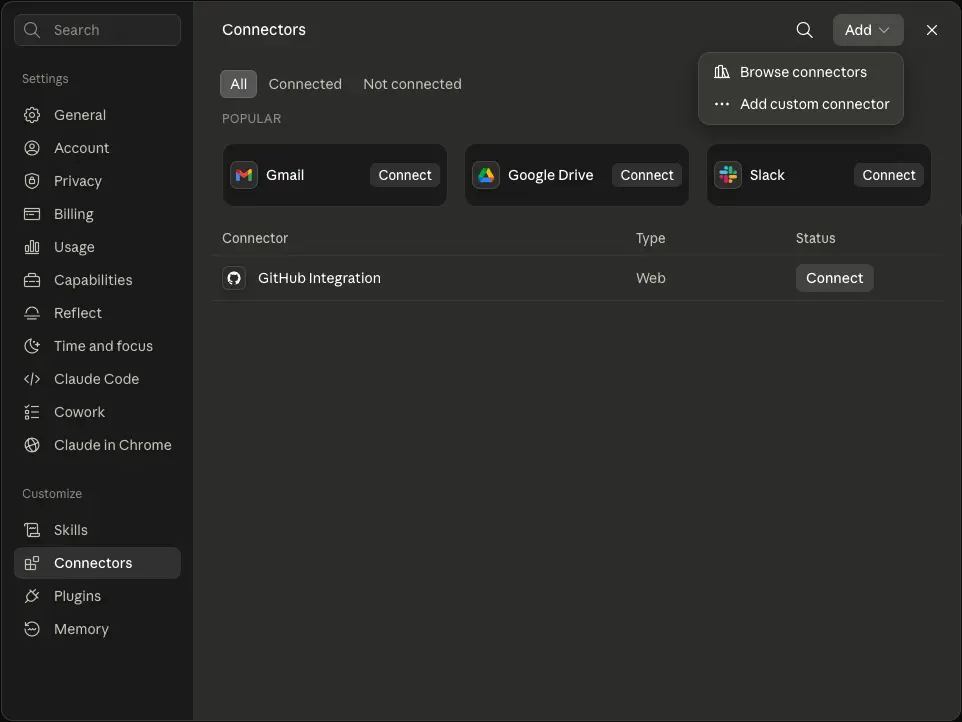
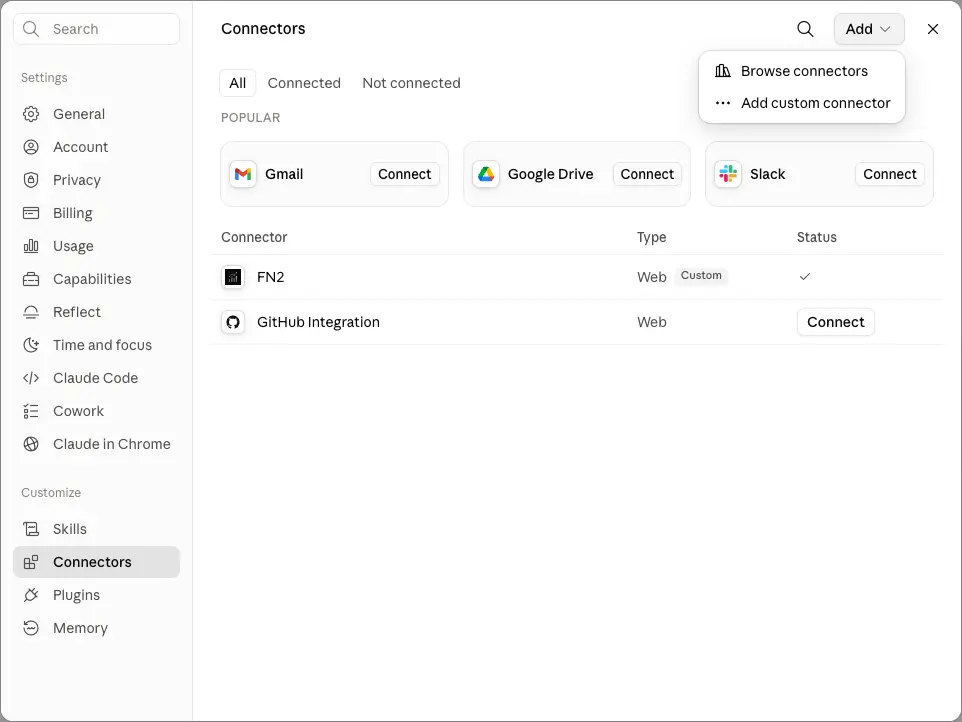
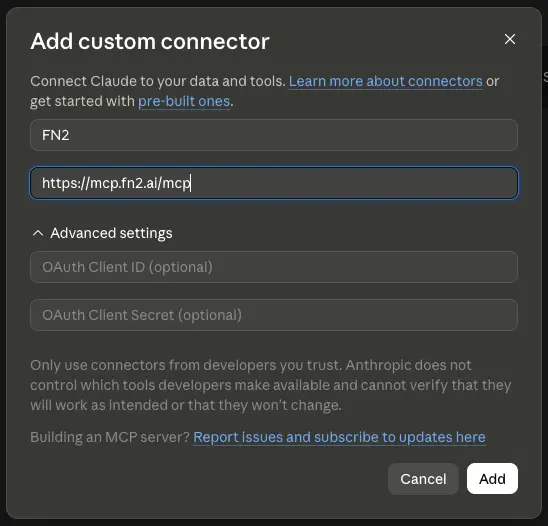
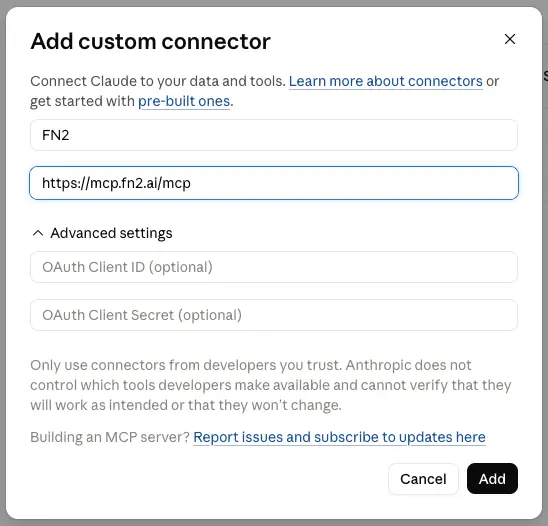
- In Claude, open Settings > Connectors and choose Add > Add custom connector.
- Name the connector FN2, paste
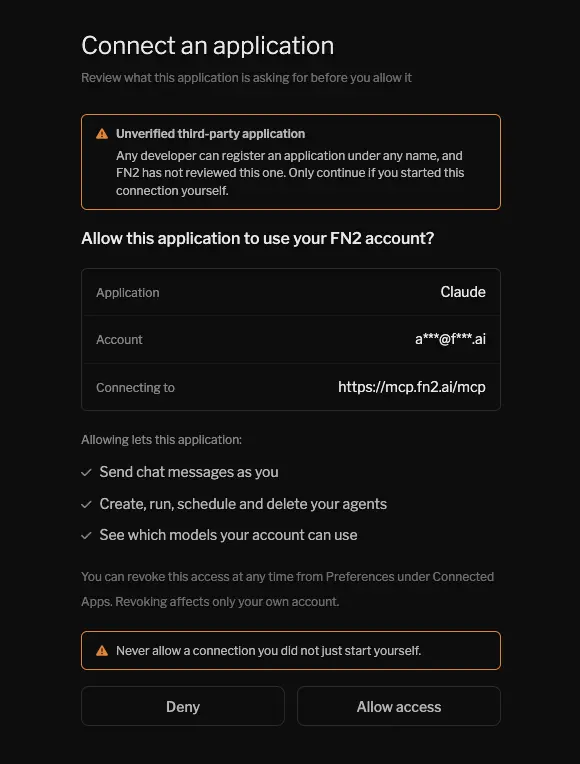
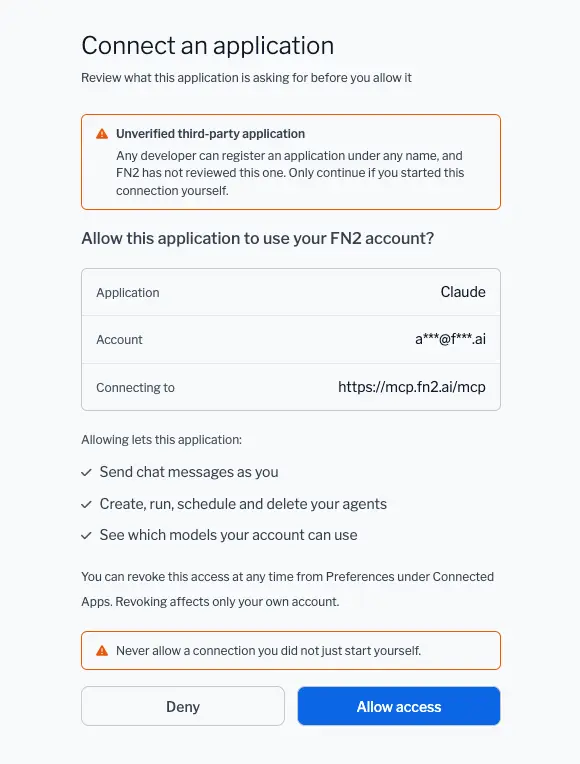
https://mcp.fn2.ai/mcpas the remote MCP server URL, and click Add. Leave the advanced OAuth fields empty; Claude registers itself automatically. - Click Connect. Claude sends you to fn2.ai, where you sign in if needed and review exactly what the app will be allowed to do. Click Allow access.
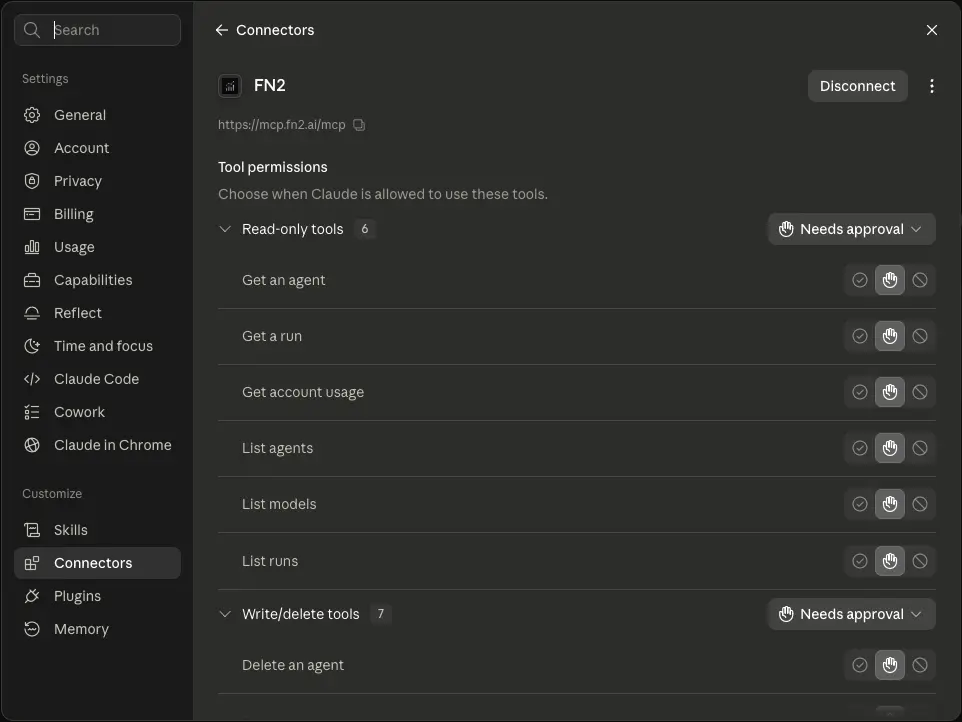
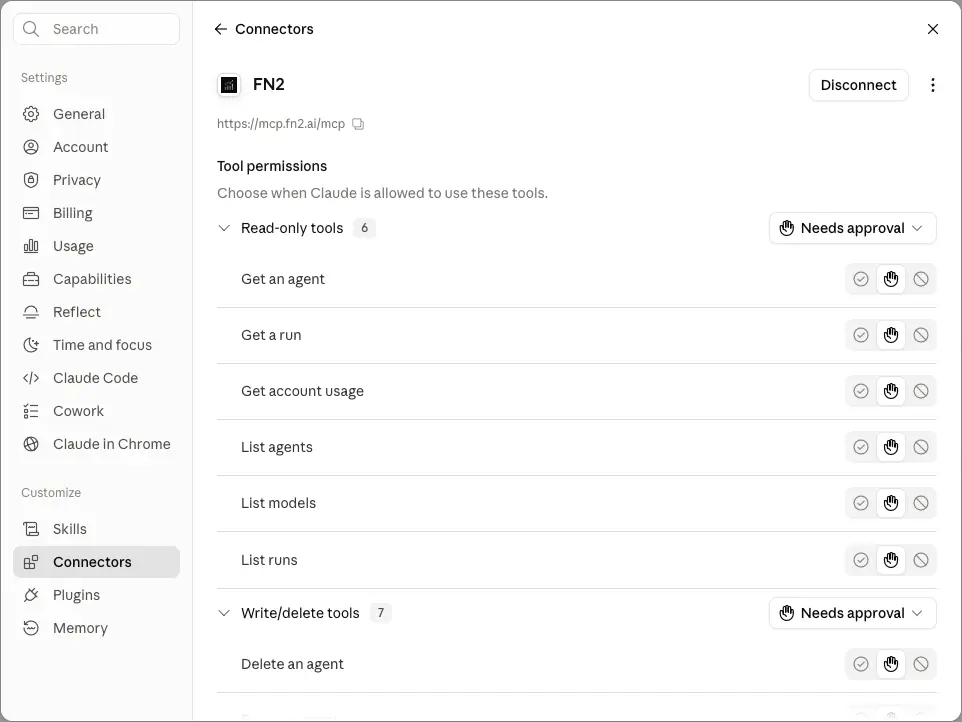
- That's it. The connector shows FN2's tools with per-tool permission controls, and Claude can use them in any chat.
What your assistant can do
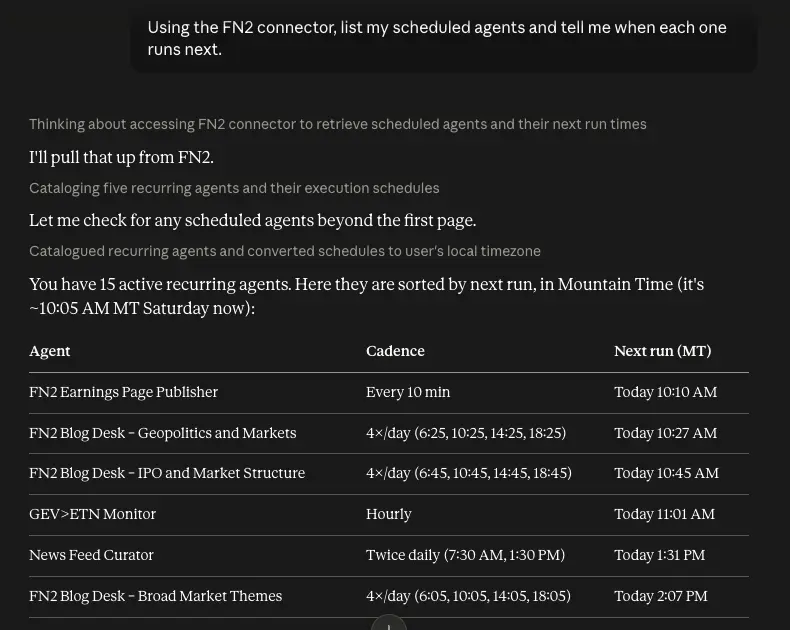
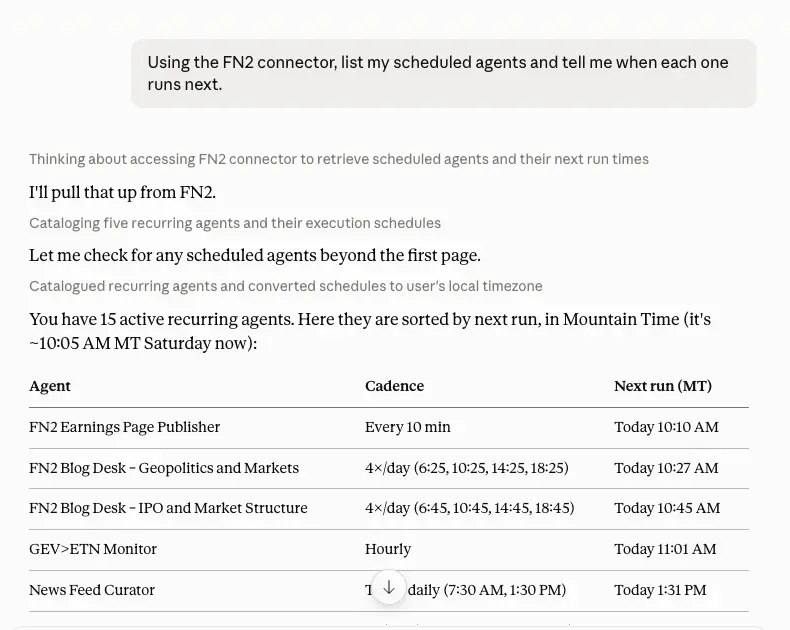
The connector exposes your FN2 account through focused tools: list, create, update, run, pause, and delete scheduled agents; read a run's full report; ask one-off research questions; and check your models and usage. Every call goes through the same scopes, plan limits, and quotas as the API, so the assistant can never do more than your account can.
Claude asks for your approval before a tool runs, and destructive tools double-check on FN2's side too. You can promote trusted read-only tools to Always allow per tool in the connector's settings.
Other MCP clients
Any client that speaks MCP over streamable HTTP with OAuth works the same way: paste the URL, approve the grant in your browser. In Claude Code, one command does it:
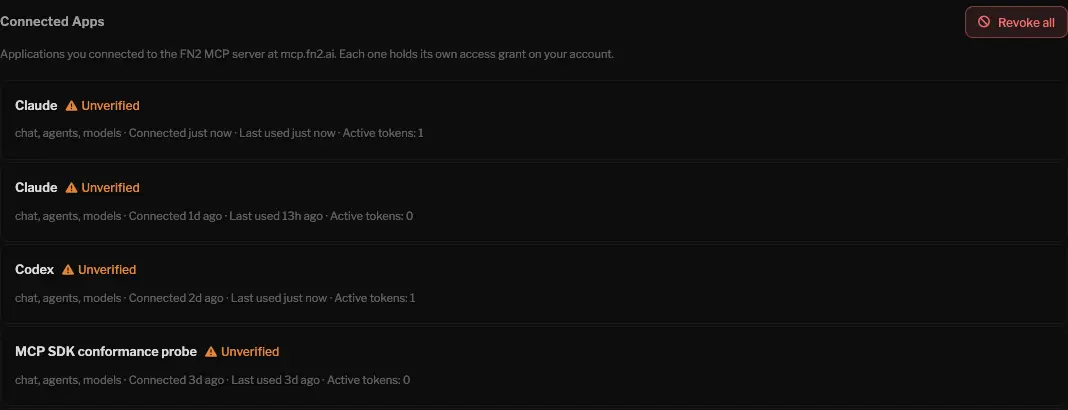
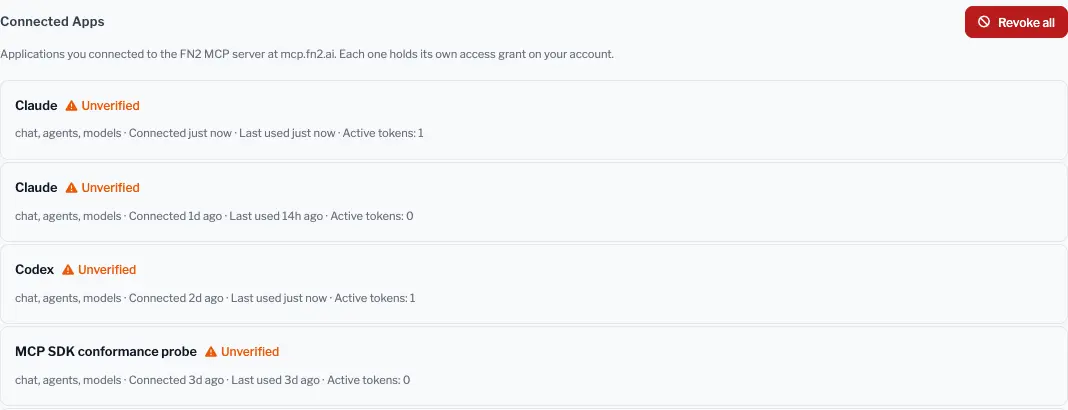
claude mcp add --transport http fn2 https://mcp.fn2.ai/mcpEach connected app holds its own revocable grant, scoped to chat, agents, and models. MCP tokens are separate from your API keys and work only against mcp.fn2.ai. Review and revoke grants at any time under Settings > Developer > Connected Apps, and never approve a connection you did not start yourself.
Plans & billing
The table below loads from the same plan catalog used at checkout, so it always reflects current pricing.
Loading current plan catalog…
Every plan includes the full data set: earnings transcripts, FRED macro data, real-time market data, and inline source citations. Higher tiers raise your usage limits and add scheduled-agent capacity. The MAX plan also includes the premium tools: technical analysis, backtesting, prediction markets, and X search.
New accounts start with a free 7-day trial automatically, no card needed. When you pick a paid plan, the subscription starts immediately and your remaining trial time is applied to the first bill. Payments run through Stripe, and you can update your card, see invoices, or cancel from the Account section in Settings.
Frequently asked questions
Can FN2 place trades?
No. FN2 is a research tool. It analyzes markets and reports back, but it does not connect to a brokerage or execute orders. Backtests are simulations on historical data, not live trading. Nothing FN2 produces is financial advice.
How accurate is the analysis?
Answers are built from real data with the sources cited inline, so you can check the underlying transcript, filing, or page yourself. Treat the output as research assistance and verify anything you act on.
What data does FN2 use?
Real-time and historical market data, a large library of earnings-call transcripts, Federal Reserve (FRED) macro data, and the open web, where it reads news, SEC filings, and other primary sources on demand. Some tools are reserved for the MAX plan: technical analysis, backtesting, prediction markets, and X (Twitter) search.
Does FN2 remember me between conversations?
A chat remembers everything within that conversation, but a new chat starts fresh. Scheduled agents are different: they keep memory across runs, so a daily monitor can tell what is new versus what it already reported.
Can I upload my own documents?
Yes. Attach a PDF, a text or spreadsheet export, or an image (up to 20 MB) in chat and ask about it, from a phone or a computer. Tap the paperclip button next to the message box; FN2 reads the full document to answer. A screenshot of your portfolio works: FN2 reads the positions off the image.
What languages are supported?
Eight: English, Chinese, Spanish, French, Italian, Japanese, German, and Korean. The interface and the AI's answers both follow your choice.
Is my data secure?
Data is encrypted in transit and at rest. Your history, watchlists, and agent configurations are private. Payments are handled by Stripe; FN2 never stores your card details.
Can I cancel anytime?
Yes. Cancel from Account settings whenever you like and keep access through the end of the current billing period.
Troubleshooting
Answers are slow
Questions that span many transcripts or pages take longer; FN2 shows what it is working on as it goes. Narrowing the question (one ticker, one timeframe) usually speeds it up.
A chart isn't loading
Charts need JavaScript. If one comes up blank, refresh the page and check that scripts aren't being blocked.
An agent isn't finishing
Agents have a maximum run time. If one keeps timing out, simplify the prompt, narrow its scope, or raise the time limit in the agent's settings.
A file upload failed
Make sure the file is a PDF, a text or spreadsheet export (.txt, .csv, .tsv, .md, .json), or an image (.png, .jpg, .webp, .gif, .heic) under 20 MB, then try again.
Contact
Reach us at:
- Support: support@fn2.ai
- Enterprise: enterprise@fn2.ai
- Feedback: feedback@fn2.ai. We read every message.
We aim to respond within 24 hours, with priority support for Enterprise customers.